UVC
Version History vs Backup vs Sync
UVC Team 2 min read
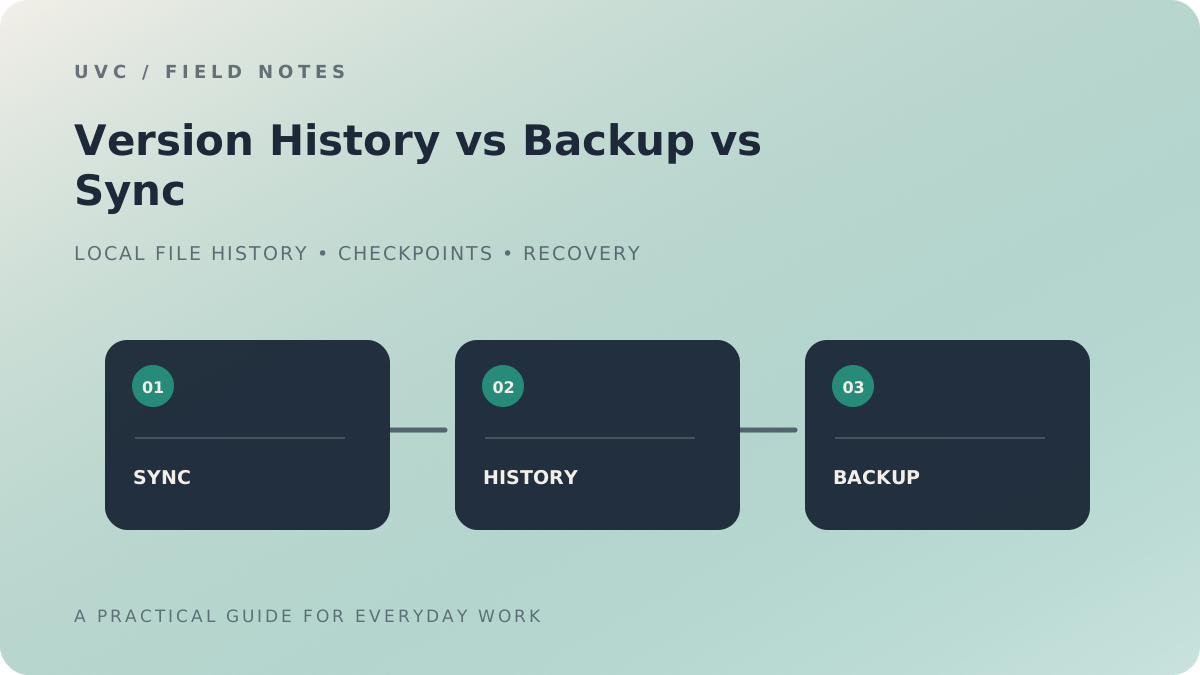
These three words often appear in the same product description, but they are not interchangeable. Sync keeps locations aligned. Backup gives you a separate recovery copy. Version history lets you return to an earlier state of a file.
A tidy setup can use all three. The trouble starts when one is expected to do the job of the others.
The difference in one table
| Capability | Main question | Example |
|---|---|---|
| Sync | Are these locations up to date with each other? | A file saved on one PC appears on another |
| Backup | Can I recover if the original data or device is lost? | Restoring a folder from an external drive |
| Version history | Can I get back the earlier state before this edit? | Reverting a spreadsheet to yesterday's version |
Why sync is not the same as backup
Sync is designed to propagate changes. That is useful when you want the latest copy on several devices. But an unwanted change can travel too. If a file is accidentally overwritten or deleted, the same change may reach other synced locations.
Microsoft documents how ransomware affecting locally synced SharePoint or OneDrive files can propagate changed or encrypted files to the online library. Its guidance recommends stopping sync or disconnecting the affected connection as part of the response. [1]
Cloud providers may provide recovery features on top of sync. OneDrive, for example, offers file version history and a broader Restore your OneDrive feature for eligible Microsoft 365 subscribers. Those safeguards are useful, but they have provider-specific prerequisites and limits. [2]
Why version history is not enough either
A local history store can be convenient for everyday recovery, but if the computer's drive fails, history stored on that same machine may be unavailable too. NIST's contingency-planning guide is a useful reminder that recovery needs to be planned around the systems and data an organisation depends on. [3]
CISA's ransomware guidance recommends offline, encrypted backups and regular restoration tests. That addresses a different risk from the everyday “I changed the wrong thing” problem. [4]
A practical setup for a small team
- Use sync for access. Keep shared working files in the service your team already uses.
- Use version history for reversibility. Know how to inspect and restore an earlier file state.
- Use an independent backup for resilience. Keep a copy outside the normal sync and device failure path.
- Test a restore. Pick a harmless sample folder and prove that the process works.
Where UVC fits
UVC focuses on local file history for selected Windows files and folders. It is intended to make earlier Checkpoints available when a local edit, overwrite or project change needs to be undone. It does not provide an off-device backup, and it should not be treated as one.
The useful question is not “Which one should I choose?” It is “Which failure am I trying to recover from?”